Guide · AI Chat UI
How to Build an AI Chat Interface in React
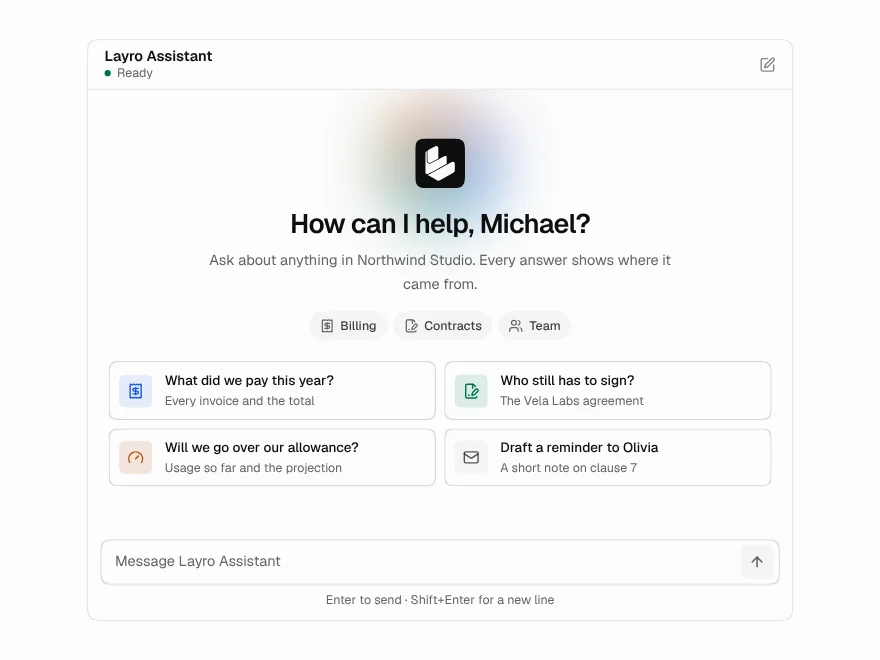
A chat interface is mostly the time between pressing Send and the answer settling. This guide builds one in React that handles that time properly: streaming, thinking, Stop, Retry, failure and scrolling.
· 9 min read
Most chat tutorials stop at a list of bubbles and a text box. That works until the model takes four seconds to start, the network drops halfway through an answer, or someone scrolls up to reread something while new text keeps arriving. Those moments are what people notice, and they are what this guide is about.
The code uses Layro's AI Chat component and the six smaller components it is made of. All of them are free, and each one is a single file you install into your own project and can read and change.
The states an answer goes through
Before writing any code, it helps to list every state one answer can be in, because each of them needs something on screen:
- Thinking. The request is sent and nothing has come back. Without a sign of life here, people press Send again.
- Generating. Words are arriving. Send should become Stop, and the text should not jump around as Markdown closes.
- Completed. The answer is done. This is where copy, regenerate and rating belong, and not before.
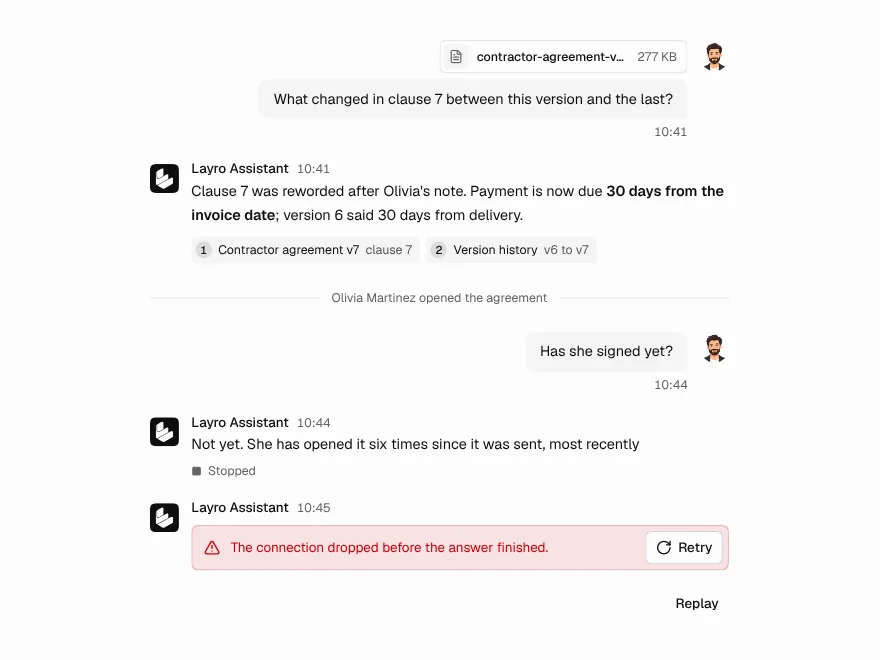
- Cancelled. The person pressed Stop. What already arrived is still useful, so keep it and mark it as stopped.
- Failed. Something went wrong. Say what, in plain words, in the place the answer would have been, with a way to retry.
The rest of the guide is how each of these is handled.
Start with the whole window
Install AI Chat with the shadcn CLI. It brings the components it is built from along with it:
npx shadcn@latest add https://layropro.com/r/ai-chatThen render it. With no onSend function it answers from a built-in simulator, so you can lay out the page, check both themes and try every state before any backend exists.
"use client";

import { AIChat } from "@/components/ui/ai-chat";

export function SupportChat() {
  return (
    <AIChat
      assistant={{ name: "Support" }}
      welcome={{
        title: "How can I help?",
        starters: ["Where is my latest invoice?", "How do I change my plan?"],
      }}
    />
  );
}
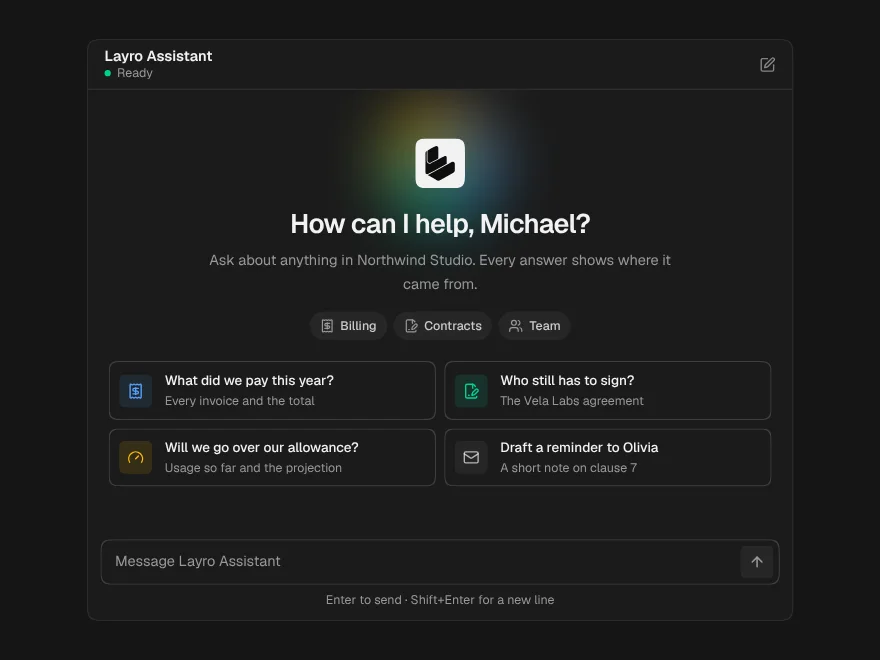
welcome fills the empty screen: a greeting and starter questions that send themselves when clicked. An empty chat with only a text box gives people nothing to go on, so it is worth writing two or three real questions your assistant answers well.
Connect it to a model
AI Chat takes one function, onSend. It receives the conversation and an abort signal, and returns the answer as a stream of strings. It does not care which model or SDK produces them.
On the server, a Next.js route handler streams the model's text back as plain text. This one uses the AI SDK, but any provider that can stream text works the same way:
import { streamText } from "ai";
import { anthropic } from "@ai-sdk/anthropic";

type Message = { role: "user" | "assistant"; text: string; status?: string };

export async function POST(req: Request) {
  const { messages }: { messages: Message[] } = await req.json();

  const result = streamText({
    model: anthropic("claude-sonnet-4-5"),
    system: "You are the support assistant for Acme. Answer briefly.",
    // A failed or empty answer is not something the model said.
    messages: messages
      .filter((m) => m.text && m.status !== "failed")
      .map((m) => ({ role: m.role, content: m.text })),
    abortSignal: req.signal,
  });

  return result.toTextStreamResponse();
}
On the client, onSend posts the conversation and yields each chunk as it arrives. The signal goes to fetch, so pressing Stop cancels the request rather than only hiding it.
<AIChat
  assistant={{ name: "Support" }}
  onSend={async function* ({ messages, signal }) {
    const res = await fetch("/api/chat", {
      method: "POST",
      headers: { "Content-Type": "application/json" },
      body: JSON.stringify({ messages }),
      signal,
    });

    if (!res.ok || !res.body) {
      throw new Error("The assistant could not be reached. Try again in a moment.");
    }

    for await (const chunk of res.body.pipeThrough(new TextDecoderStream())) {
      yield chunk;
    }
  }}
/>
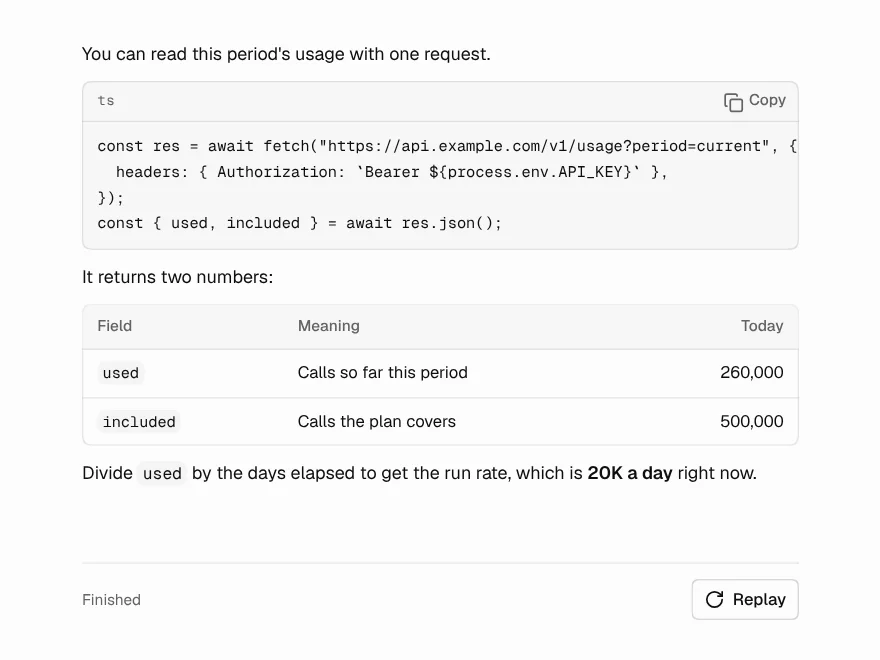
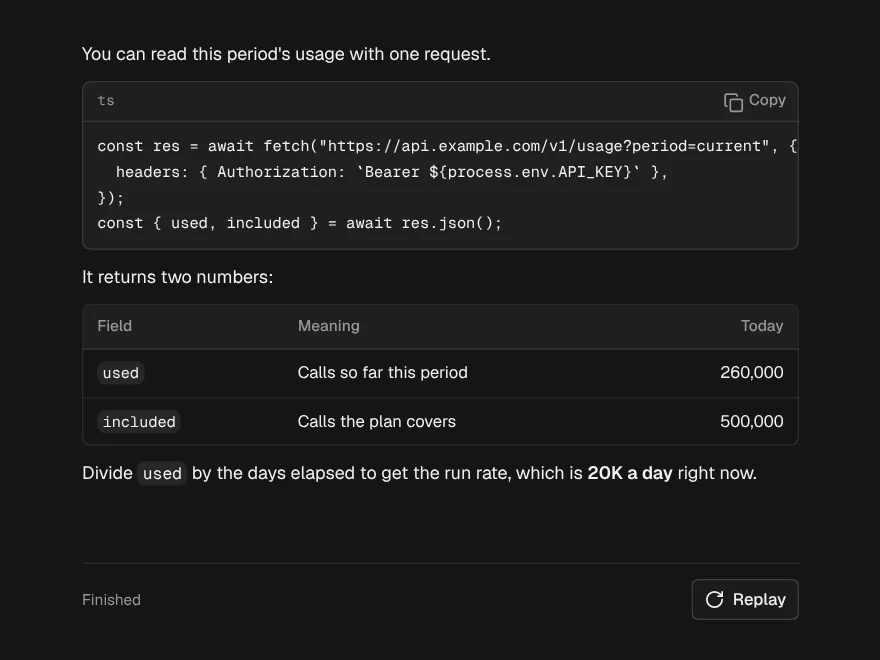
The text that arrives is Markdown, and it arrives in pieces. A normal Markdown renderer shows raw asterisks and pipes until the closing mark turns up, then redraws the paragraph. The Streaming Response component inside AI Chat treats an unclosed mark as open to the end, so half-written bold, an unfinished code block or a table mid-row already look like what they are becoming. It also evens out bursty chunks so the text arrives at a steady pace.
Say what it is doing while it thinks
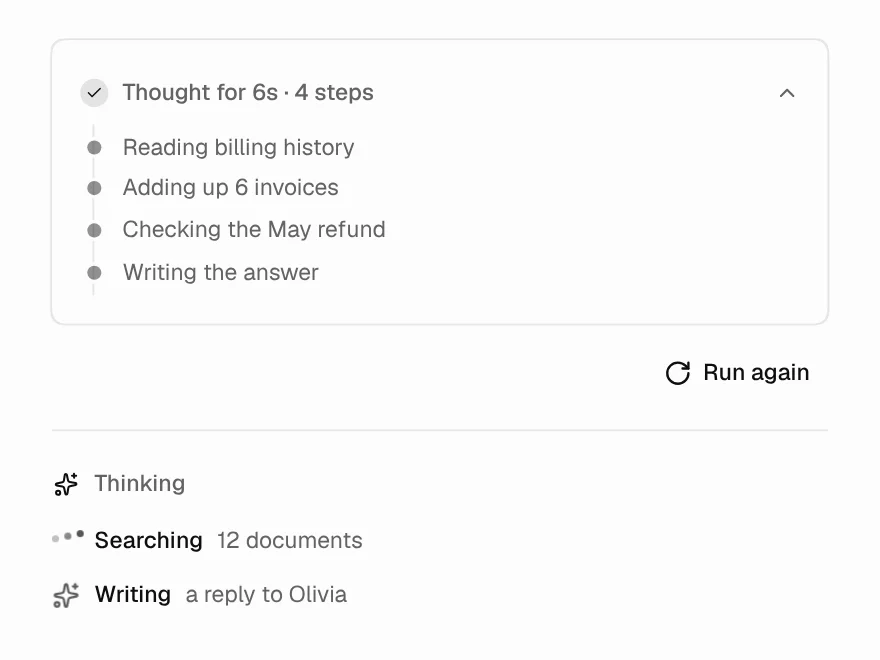
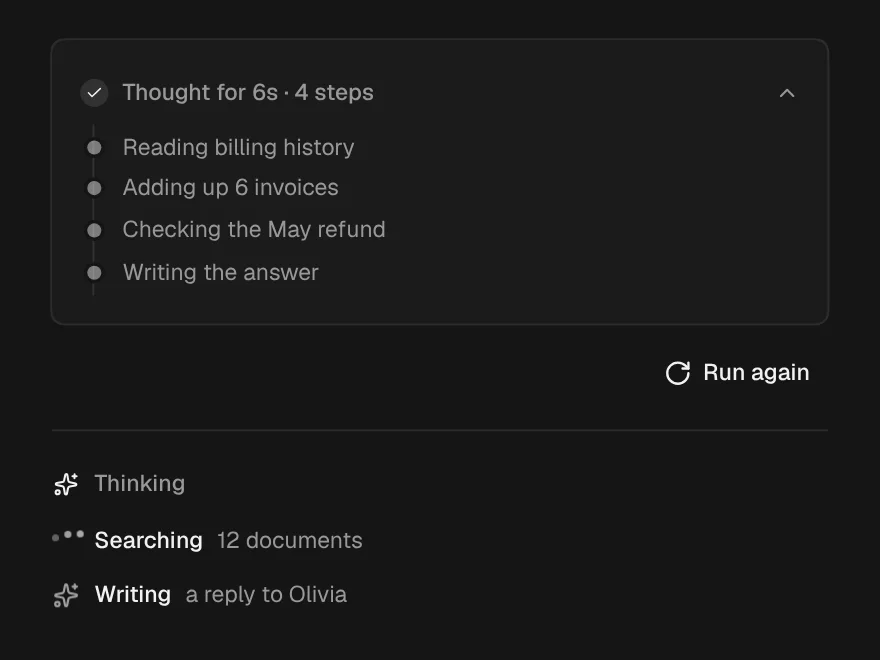
The first word can take seconds, especially when the model calls tools or searches your data first. A spinner says nothing about whether it is working. Saying what it is doing does.
Besides strings, the stream from onSend can yield { type: "status", detail } to update the Thinking State line, and { type: "sources", sources } to list what the answer is drawn from:
onSend={async function* ({ text, signal }) {
  yield { type: "status", detail: "Searching your invoices" };
  const invoices = await searchInvoices(text, { signal });

  yield {
    type: "sources",
    sources: invoices.map((inv) => ({
      title: inv.number,
      meta: inv.date,
      href: "/invoices/" + inv.id,
    })),
  };

  yield { type: "status", detail: "Writing the answer" };
  yield* streamAnswer(text, invoices, { signal });
}}
Thinking State shows the current step beside a shimmer and adds a timer after three seconds, then gives way to the answer as soon as the first word arrives. The sources are listed with the answer, numbered in the order you give them, each linking to where it came from.
Stop, retry and failure
While an answer is arriving, the Prompt Input Send button becomes Stop, and Escape does the same from the keyboard. Stop aborts the signal you passed to fetch. The words that already arrived stay on screen, marked as stopped, and they keep the copy button, because a half answer is often the half that was needed.
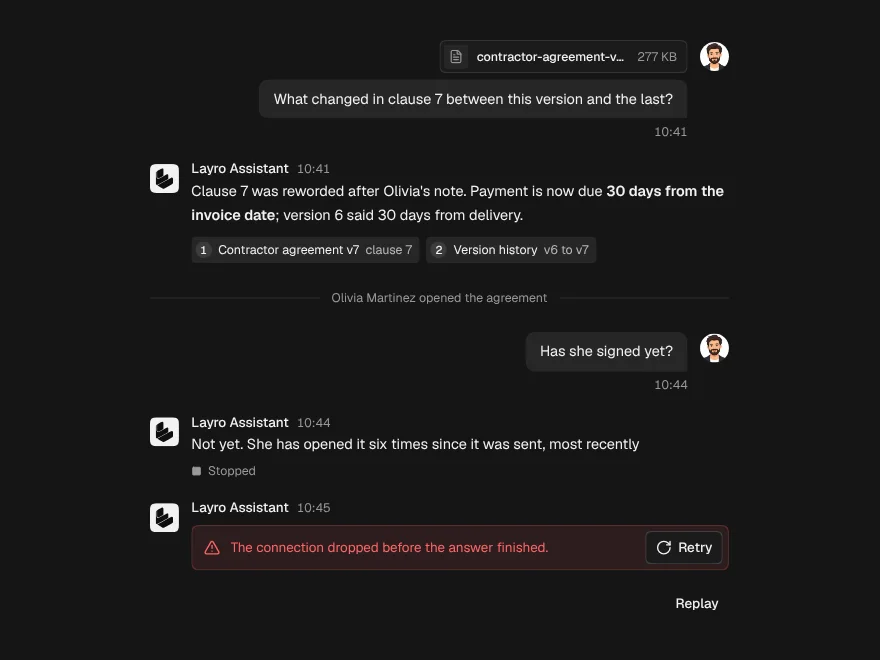
When onSend throws, the error message is shown where the answer would have been, with Retry beside it. That makes the message you throw part of the interface. “The assistant could not be reached. Try again in a moment.” helps; a status code does not.
Failure is the state least often seen during development, so test it on purpose. simulateStream can break partway through:
import { simulateStream } from "@/components/ui/streaming-response";

<AIChat
  onSend={({ signal }) =>
    simulateStream("This answer will break halfway through.", {
      signal,
      startDelay: 800,
      failAfter: 20,
      failWith: "The connection dropped before the answer finished.",
    })
  }
/>
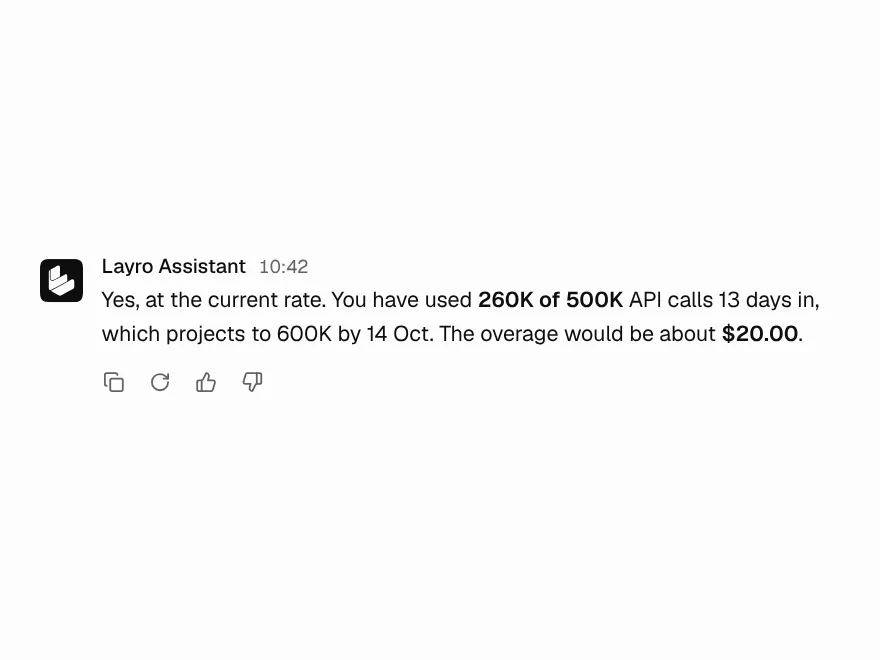
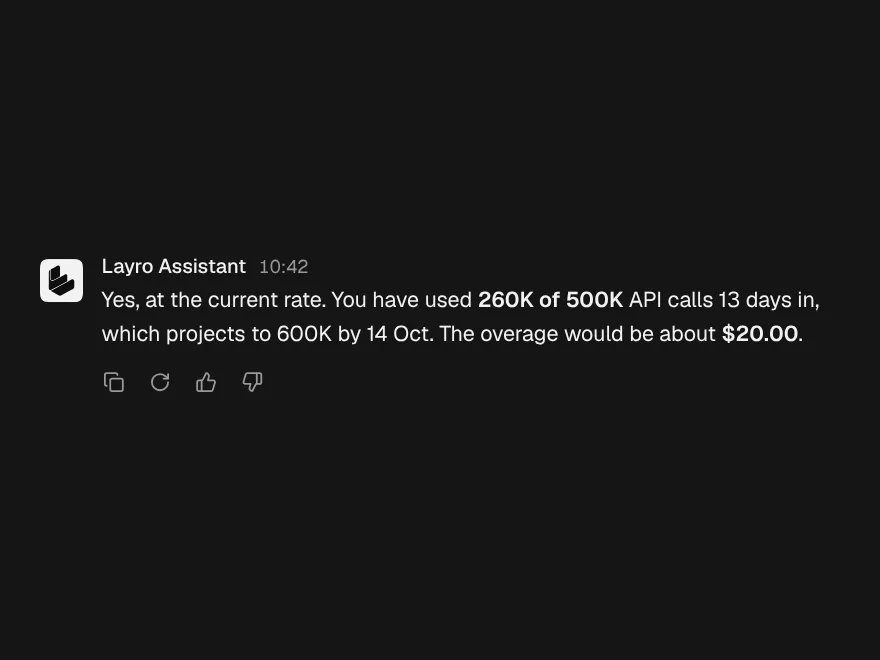
Once an answer completes, Message Actions appear under it: copy, regenerate and thumbs up or down. Regenerate keeps the earlier answer, and a pager moves between the versions, so asking again never throws away an answer someone preferred.
Scrolling that leaves the reader alone
A chat window has to follow new text down while someone is watching it arrive. It also has to stop following the moment they scroll up to reread something, or the page drags them back down every few milliseconds.
The usual check, “are we near the bottom?”, gets this wrong. New text moves the scroll position, and so does an answer getting shorter when it is regenerated. Neither of those is the reader. AI Chat decides from what the reader does instead: the wheel or a finger moving up, the arrow keys, or dragging the scrollbar. Once they have left, a button appears to jump back to the latest message, and returning to the bottom resumes following.
ai-chat.tsx after installing it; it is a few dozen lines.Saving conversations
AI Chat keeps the thread in its own state. To persist it, pass onMessagesChange, which is called whenever the thread changes, and pass the saved thread back as defaultMessages when the page loads. onFeedback reports ratings, and again with the reason after a thumbs down:
<AIChat
  defaultMessages={saved}
  onMessagesChange={(messages) => {
    // Save finished turns only; a streaming answer changes on every chunk.
    if (messages.every((m) => m.status !== "streaming" && m.status !== "thinking")) {
      saveConversation(conversationId, messages);
    }
  }}
  onFeedback={(message, value, reason) => {
    logFeedback({ messageId: message.id, value, reason });
  }}
/>
Each message carries its status, so a saved answer that was stopped comes back still marked as stopped. For a list of past chats in a sidebar, see Conversation History.
Building your own layout from the parts
AI Chat is a complete window. When your product needs a different layout, such as a chat beside a document, inside a side panel or with its own header, use the parts directly. You then own the message state and the request, and each part handles its own piece:
- Chat Message lays out one turn by
role, and draws cancelled and failed answers with the error and Retry. - Streaming Response renders the growing Markdown string.
- Thinking State fills the wait before the first word.
- Message Actions adds copy, regenerate and rating under a finished answer.
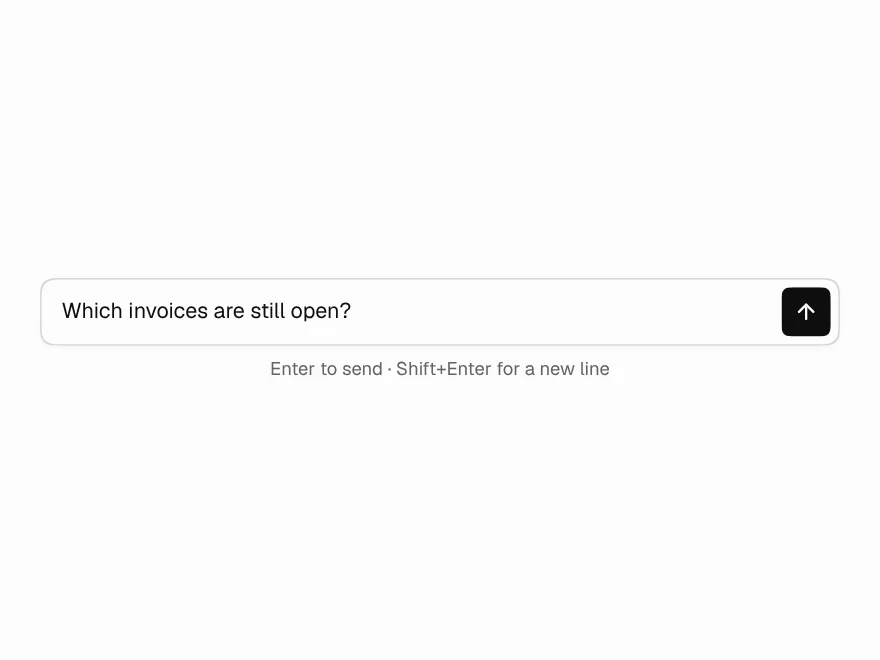
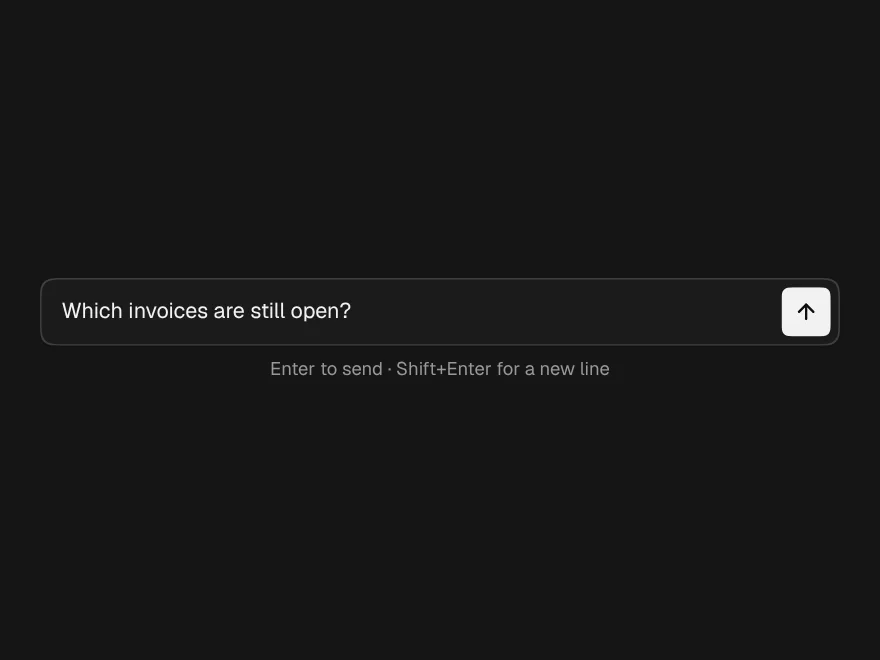
- Prompt Input is the box: it grows with the text, Enter sends, Shift+Enter adds a line, and it does not send while an input method is still composing.
Put together, the thread is a map over your messages:
<ChatMessageList>
  {messages.map((m) =>
    m.role === "user" ? (
      <ChatMessage key={m.id} role="user" time={m.time}>
        {m.text}
      </ChatMessage>
    ) : (
      <ChatMessage
        key={m.id}
        role="assistant"
        name="Support"
        status={m.status === "thinking" ? "streaming" : m.status}
        error={m.error}
        onRetry={() => retry(m.id)}
        sources={m.sources}
        actions={
          m.status === "complete" && (
            <MessageActions text={m.text} onRegenerate={() => retry(m.id)} />
          )
        }
      >
        {m.status === "thinking" ? (
          <ThinkingState detail={m.detail} />
        ) : (
          <StreamingResponse text={m.text} streaming={m.status === "streaming"} />
        )}
      </ChatMessage>
    ),
  )}
</ChatMessageList>

<PromptInput
  onSubmit={send}
  onStop={stop}
  status={busy ? "streaming" : "idle"}
  placeholder="Message Support"
/>
Here send, stop and retry are yours: they update your message state and call your API the same way onSend does above. Reading ai-chat.tsx is the quickest way to see one complete version of them.